
Logging your AI events (from Ollama) in Bronto
David Tracey
Many software companies, including logging platform providers, are investigating the use of Large Language Models (LLMs) in their products and some have embedded LLMs in their application. For our part, Bronto has announced our Bronto Labs initiative and the first three areas where we will introduce AI into our logging platform in order to reduce user toil, increase team efficiency and reduce MTTR include:
Auto-Parsing logs using AI
AI Dashboard Creation
BrontoScope to investigate particular errors
This post will, however, consider a different aspect of logging and AI - using logs themselves in developing AI applications or even LLMs. We will focus on Ollama, but in subsequent posts we will look at other LLMs and use cases in logging.
Ollama ( https://ollama.com/) is an open source tool that enables the execution of large language models (LLMs), where the model can be chosen by the user from a wide variety on the Ollama Registry. Ollama can be run locally with reasonable performance, with or without GPU support, but the size of the model and the RAM on your machine may affect the performance, i.e. smaller models can be expected to run more quickly.
LLMs are complex systems, but as well as “traditional” use cases for logging, like performance and latency monitoring/evaluation or API usage, their non-deterministic nature increases the need for logging, e.g. in being able to record and track/analyse responses to prompts.
Hence, it is important to note that tools and services such as Ollama and Bedrock can produce lots of logs. The size of each individual log event can be large for those logs that include a prompt or the response, as the prompt itself or the response can be large. Furthermore, it is these log events containing the prompt and response that may be important to an application developer who wants to debug or even provide an audit for his application.
Meta considered the problem of logging AI events at their scale to require the development of a dedicated Meta AI Logging Engine for internal use and they state “In order to triage such a dynamic nature of failures, it is necessary to collect detailed telemetry on the systems and model telemetry”.
So, without considering use cases in detail, we can say that the following are fundamental requirements for a logging solution for AI applications:
Ability to handle large log events
Ability to handle high volumes of log events at low cost
Ability to search across a high volume of events
Fortunately, these are the requirements Bronto was designed to meet. An earlier blog Why is Bronto so Fast showed how fast Bronto can search large volumes of logs and The Log Management Cost Trap - Storage showed how we provide high volume, low cost log storage.
An additional requirement is also emerging in the logging of AI systems and that is the ability to debug across multiple, distributed agents — see our approach to observability for AI agents — and this is a perfect requirement for a SaaS solution that centralises logs like Bronto to meet. Furthermore, there is a growing realisation of the need to generate and retain audit records for certain AI applications, which suits Bronto’s 12 month default retention policy.
We’ll begin by installing Ollama, then see how easy it is to set up Ollama to send logs to Bronto.
Next we’ll write a simple API program to make requests to Ollama and to view/search the logs in Bronto. More detail on debugging Ollama can be found at Troubleshooting Ollama, where it states “One of the best ways to figure out what happened is to take a look at the logs.”
Setting up Ollama
The following are recommended to run Ollama:
16 GB RAM for running models (it will run on 8 GB for some smaller models)
12 GB disk space for Ollama and basic models. Additional space will be needed to store model data according to the model
A modern CPU with at least 4 cores, with 8 preferred
Optionally a Graphics Processing Unit (GPU) to improve performance, particularly with large models
Install and run the server
Install Ollama from the Download page for your OS, and follow the instructions. Once installed, launch the Ollama server from the command line:
ollama serveYou should see output like the following (note the default port it’s listening on, 11434):
2025/07/07 15:51:58 routes.go:1158: INFO server config env="map[HTTPS_PROXY: HTTP_PROXY: NO_PROXY: OLLAMA_DEBUG:true OLLAMA_FLASH_ATTENTION:false OLLAMA_GPU_OVERHEAD:0 OLLAMA_HOST:http://127.0.0.1:11434 OLLAMA_KEEP_ALIVE:5m0s OLLAMA_LLM_LIBRARY: OLLAMA_LOAD_TIMEOUT:5m0s OLLAMA_MAX_LOADED_MODELS:0 OLLAMA_MAX_QUEUE:512 OLLAMA_MODELS:/Users/SomeUser/.ollama/models OLLAMA_MULTIUSER_CACHE:false OLLAMA_NOHISTORY:false OLLAMA_NOPRUNE:false OLLAMA_NUM_PARALLEL:0 OLLAMA_ORIGINS:[http://localhost https://localhost http://localhost:* https://localhost:* http://127.0.0.1 https://127.0.0.1 http://127.0.0.1:* https://127.0.0.1:* http://0.0.0.0 https://0.0.0.0 http://0.0.0.0:* https://0.0.0.0:* app://* file://* tauri://*] OLLAMA_SCHED_SPREAD:false OLLAMA_TMPDIR: http_proxy: https_proxy: no_proxy:]"
time=2025-07-07T15:51:58.972+01:00 level=INFO source=images.go:754 msg="total blobs: 20"
Download a model
Use pull to download a model from the Ollama model registry:
ollama pull gemma:2bUse list to see the models on your machine:
ollama listNAME ID SIZE MODIFIED
mistral:latest f974a74358d6 4.1 GB 5 weeks ago
gemma:2b b50d6c999e59 1.7 GB 8 weeks ago
llama3:latest 365c0bd3c000 4.7 GB 2 months ago
llama3.1:latest 42182419e950 4.7 GB 3 months agoUse run to run a model locally:
ollama run gemma:2bThis opens a >>> prompt where you can enter a prompt, or type /? for help:
>>> /?
Available Commands:
  /set            Set session variables
  /show           Show model information
  /load <model>   Load a session or model
  /save <model>   Save your current session
  /clear          Clear session context
  /bye            Exit
  /?, /help       Help for a command
  /? shortcuts    Help for keyboard shortcuts

Use """ to begin a multi-line message.
Sending Ollama logs to Bronto
Now we will walk through how to set up Ollama logging and how to use OpenTelemetry to send logs to Bronto.
Set up logging for Ollama
First, stop the ollama server started in an earlier step and restart it this time to write the server logs to file (default is to go to the console) as below (adjusting the path to suit from the default of ~/.ollama/logs/server.log), e.g.
ollama serve > /your_log_path/.ollama/logs/server.log 2>&1Second, for more detailed Ollama logs, you can set the log level to debug to get a richer view of what Ollama is doing. Add these lines to your
.zprofile(or wherever your profile is):
export OLLAMA_LOG_LEVEL=DEBUG
export OLLAMA_DEBUG=true
Next, you can also redirect logs from a client running a model to a file:
ollama run gemma:2b 2>> /your_log_path/.ollama/logs/gemma.logOr to redirect both stdout and stderr, do as below, but note this means we lose the ability to input and see responses on the console (so this is only useful if you are going to use the API to send prompts and not the console)
ollama run gemma:2b > /your_log_path/.ollama/logs/gemma.log 2>&1Check that the Ollama logs are being created locally, e.g. using tail:
tail -f /your_log_path/.ollama/logs/server.logSet up OpenTelemetry
Bronto supports the use of the OpenTelemetry Collector to send us logs as per our docs page at Send Logs to Bronto. This is a suitable method to use for sending Ollama logs and while Ollama does not come with a native OpenTelemetry integration, it can be set up for Ollama as shown in the following sections.
There are also client side tools such as OpenLIT and Langfuse that can instrument your application and you can configure an OpenTelemetry Protocol (OTLP) endpoint to send their data to an external platform, such as Bronto. Future blogs will consider the use of these tools.
Download and Install OpenTelemetry Collector
Download and install per OpenTelemetry Install, for your hardware and operating system. As an example, the following download and install is for the OpenTelemetry version for a Mac running the Darwin OS on ARM64:
curl --proto '=https' --tlsv1.2 -fOL https://github.com/open-telemetry/opentelemetry-collector-releases/releases/download/v0.114.0/otelcol-contrib_0.114.0_darwin_arm64.tar.gz
tar -xzf otelcol-contrib_0.114.0_darwin_arm64.tar.gz
chmod +x otelcol-contrib
sudo mv otelcol-contrib /usr/local/bin/otelcol
Verify your OpenTelemetry Collector
Check that the install worked:
otelcol --versionThen create a directory for the config file if the install didn’t create one:
sudo mkdir -p /etc/otelcolForward Logs to Bronto
Once the Collector is installed, create a config.yaml to forward the Ollama logs to Bronto, similar to the following (adjust paths as needed, and rename the Gemma items if you’re using a different model):
receivers:
  filelog/Ollama_Server:
    include:
      - /your_log_path/.ollama/logs/server.log
    resource:
      service.name: LaptopServer
      service.namespace: Ollama

  filelog/Ollama_Gemma:
    include:
      - /your_log_path/.ollama/logs/gemma.log
    resource:
      service.name: LaptopGemma
      service.namespace: Ollama

processors:
  batch:

exporters:
  otlphttp/brontobytes:
    logs_endpoint: "https://ingestion.us.bronto.io/v1/logs"
    compression: none
    headers:
      x-bronto-api-key: replace_this_with_your_bronto_apikey

service:
  pipelines:
    logs:
      receivers: [filelog/Ollama_Server, filelog/Ollama_Gemma]
      processors: [batch]
      exporters: [otlphttp/brontobytes]

  # Useful for debugging: uncomment to write Collector logs to a file
  # telemetry:
  #   logs:
  #     level: "debug"
  #     output_paths: [/your_log_path/otelcol/debug.log]
Validate your config.yaml:
otelcol validate --config=/etc/otelcol/config.yamlRun OpenTelemetry:
otelcol --config=/etc/otelcol/config.yamlA simple Ollama API program
The Python code for this API program ollama-log-demo.py is in the Appendix. It uses the Ollama API, which allows users to make requests to models and generate a series of responses and this program:
Retrieves log events from a specified log file.
This file was downloaded from a Bronto CDN log. If you have a Bronto account, you could extend this program to use the Bronto Search API to retrieve selected log events from Bronto and then analyse those logs using Ollama.
Allows you to make requests with different prompts on the specified log file using the model specified in the command line argument
--model, shown below for thegemma:2bmodel
The first prompt asks Ollama to produce a summary of the logs:
python3 ollama-log-demo.py 100lines-CDN-log.csv --model "gemma:2b" --prompt "You have been given 100 lines from a CDN log in CSV format. Summarise the logs provided."The second prompt asks Ollama to find errors in the logs:
python3 ollama-log-demo.py 100lines-search-log.csv --model "gemma:2b" --prompt "Find errors in this log and suggest how to fix them"The functionality of the second prompt is a simple example of the richer functionality built into BrontoScope, mentioned at the beginning of this blog, which runs in the Cloud and not locally as in this example.
The final part of the response from Ollama also includes additional data gathered when generating the responses (and these can also be found in the server logs):
Field | Description |
|---|---|
total_duration | Time spent in nanoseconds generating the response |
load_duration | Time spent in nanoseconds loading the model |
prompt_eval_count | Number of tokens in the prompt |
prompt_eval_duration | Time spent in nanoseconds evaluating the prompt |
eval_count | Number of tokens in the response |
eval_duration | Time in nanoseconds spent generating the response |
context | An encoding of the conversation used in this response; can be sent in the next request to keep memory |
response | Empty if streamed; contains full response if not streamed |
Example Response from API program
The following is an example of a response to the first prompt above requesting a summary of the CDN Logs.
The provided context contains information about various API requests and responses, including timestamps, client IPs, geo locations, request methods, response status codes, and more.
Here's a breakdown of the key points:
Field | Details |
|---|---|
Timestamp | Each entry contains a timestamp indicating the date and time of the request. |
Client IP | The client IP address is different for each request, suggesting different devices or applications making the requests. |
Location | The location is specified based on the country and city (e.g., Italy, Chula Vista). |
Request Method | The request method is indicated for each request. |
Response Status Code | The response status code indicates the result of the request. |
Response Body Size | The size of the response body is provided in some cases. |
API Key | The API key is also included in some requests, indicating authorized access. |
Fastly Server | The Fastly server field indicates the server used for the request. |
You can try different models such as mistral or llama3.1 with the program and compare the time taken and the detail of the response given. These modelsGemma:2b is good for summarising, but tends to give summaries rather than what the prompt asked for, even when specifically told not to give a summary. Mistral takes longer to create responses and they tend to be more detailed and specific to the data, but it can also tend to provide summaries - defining the prompt for your use case is key.
Searching Ollama logs in Bronto
The Ollama server sends “traditional” log messages at levels such as INFO for normal operation, WARN for non-critical issues, and ERROR for errors requiring attention, for example:
INFO [main] HTTP server listening | hostname="127.0.0.1" n_threads_http="7" port="57814" tid="0x201604c00" timestamp=1752058824
level=INFO source=sched.go:714 msg="new model will fit in available VRAM in single GPU, loading" model=/Users/...
time=2025-07-10T10:46:17.593+01:00 level=INFO source=server.go:105 msg="system memory" total="8.0 GiB" free="1.2 GiB" free_swap="0 B"
level=DEBUG source=memory.go:103 msg=evaluating library=metal gpu_count=1 available="[5.3 GiB]"
It also sends log messages with a variety of information, such as events containing “model”, “memory”, or “GPU”, that show how the model loaded, its resource usage, or whether it failed for lack of a resource like memory, for example:
llm_load_print_meta: max token length = 93
llama_model_loader: - kv 0: general.architecture str = gemma
time=2025-07-10T10:46:17.593+01:00 level=INFO source=sched.go:714 msg="new model will fit in available VRAM in single GPU, loading" model=/Users/...
It is worth noting that the log lines above are unstructured or semi-structured, meaning that the logging platform analysing them must be flexible in handling such events and Bronto can do this and you could even add a custom parser for the logs to make them more convenient to view and search.
Some example screens from the simple Ollama test setup, handling some requests from the demo API program are shown below and note that even though there are a relatively small number of logs produced during these tests, using small prompts, that there is a relatively large amount of data (2MB for 244 log events shown in Fig. 1):
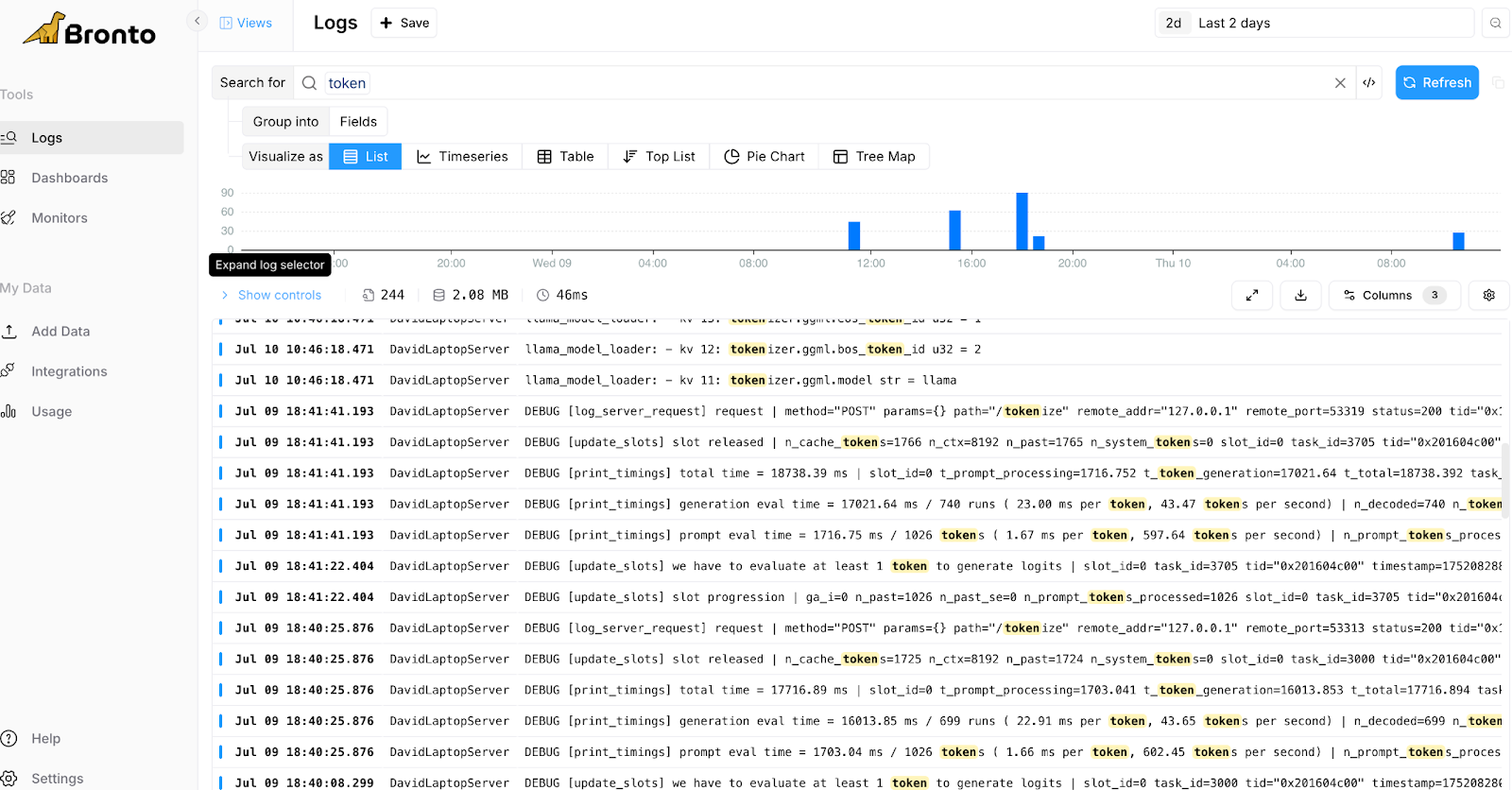
Fig.1 Searching for Log Events containing “tokens”
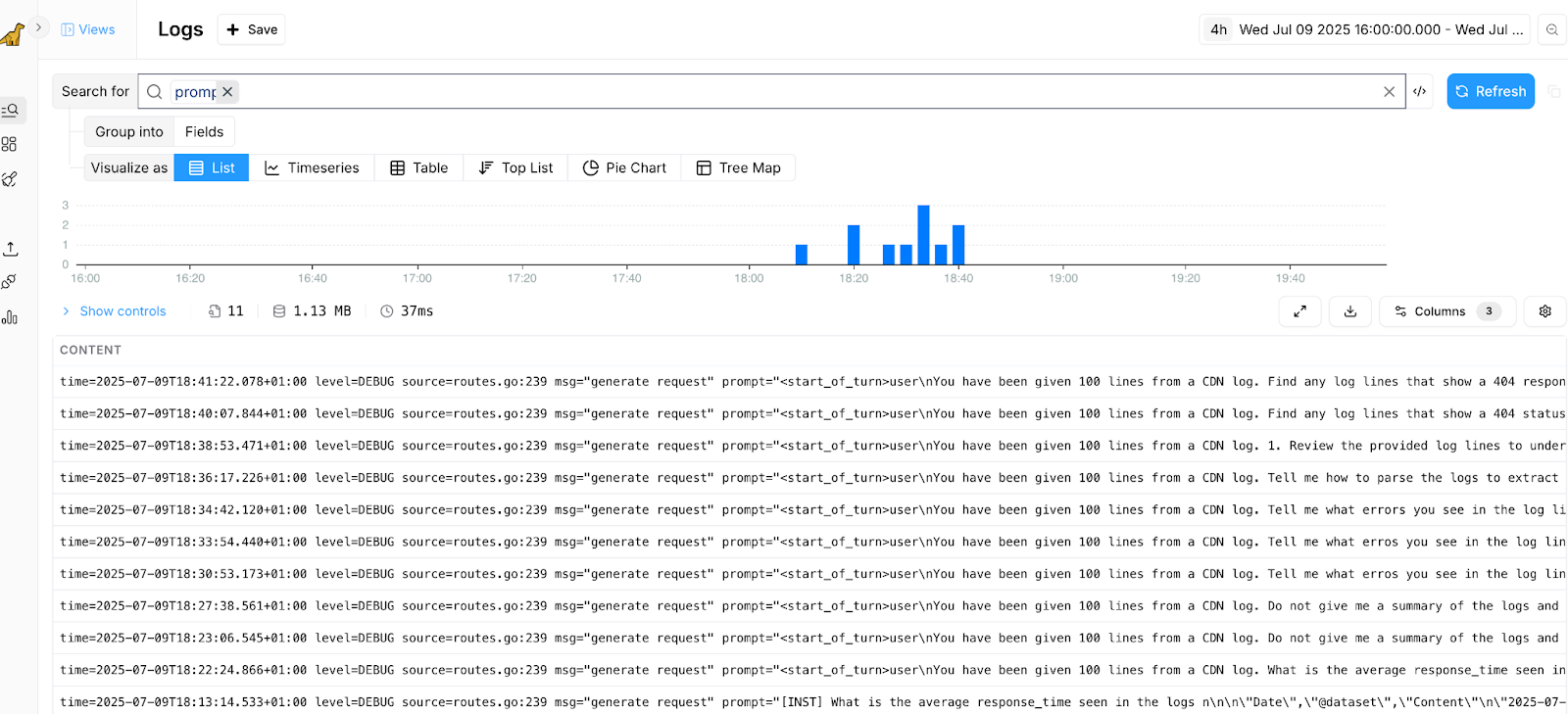
Fig.2 Searching for Log Events containing “prompt”
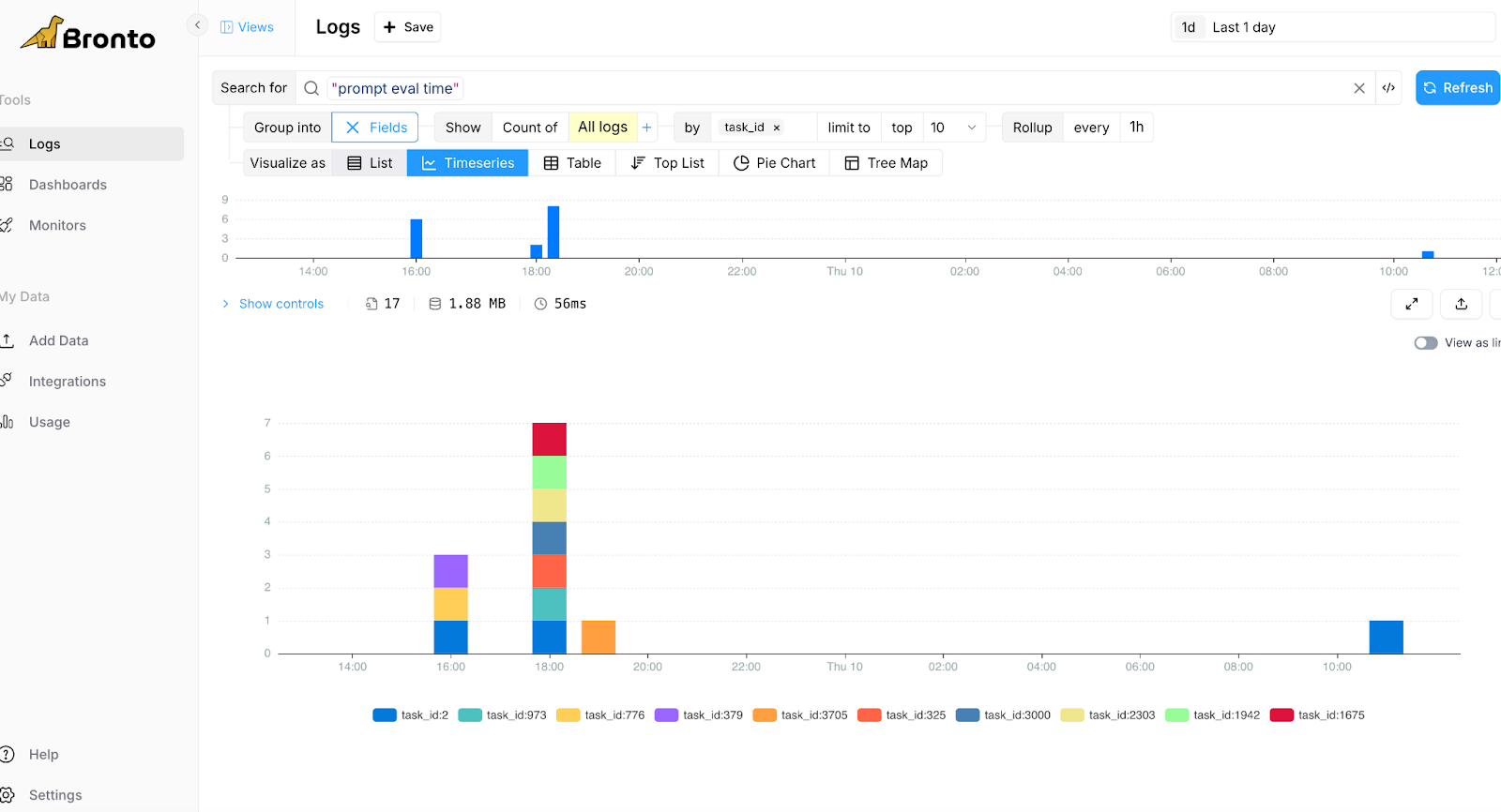
Fig. 3 Grouping by Prompt evaluation time per task_id
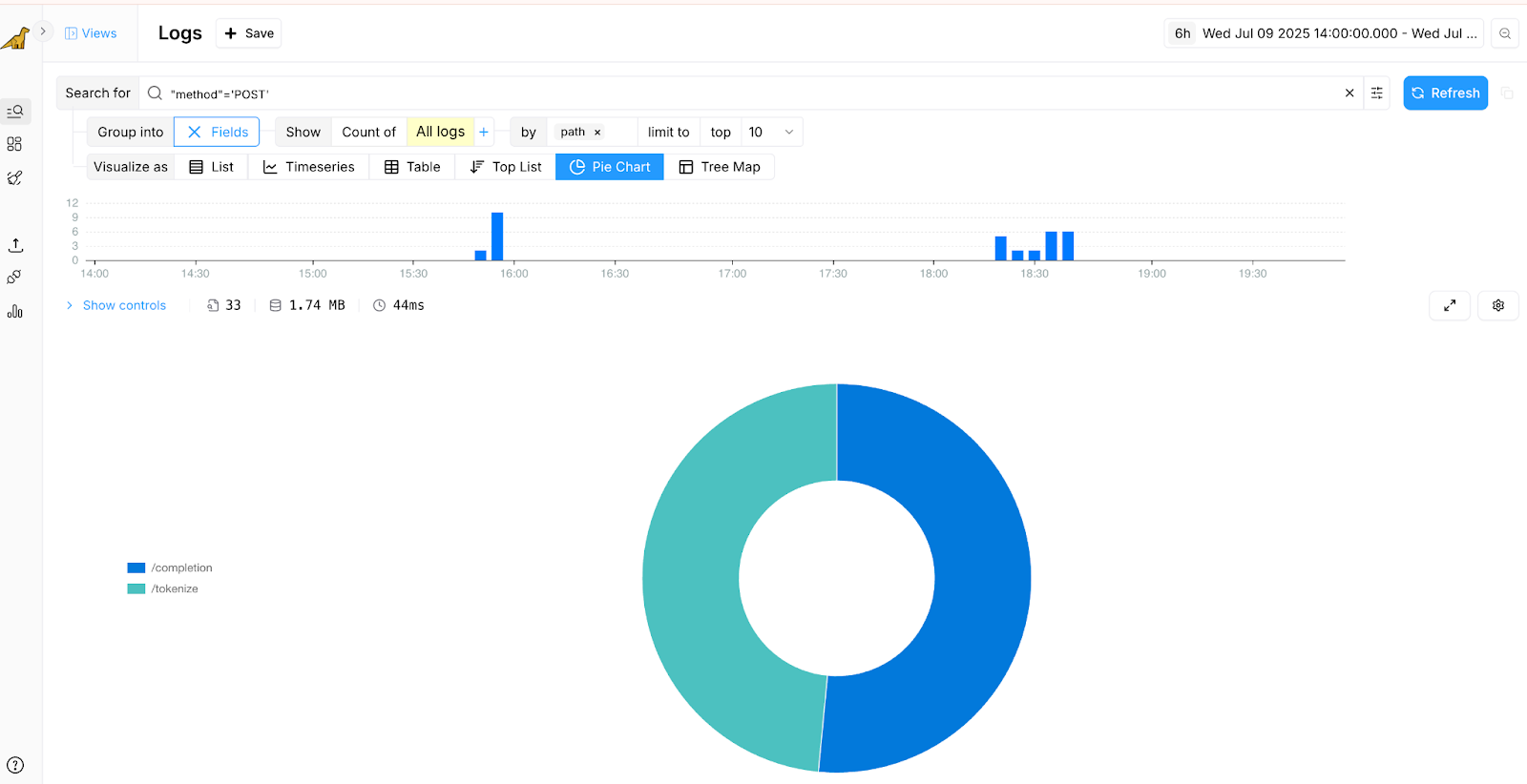
Fig.4 Showing HTTP POST calls per Ollama Server API Endpoints
Conclusion
This blog has introduced Ollama as an example of an LLM system and why LLM logs need Bronto as the logging layer for the AI era as it has been specifically designed for fast search and large volumes of logs. The blog has also shown how to set Ollama up locally and how to configure OpenTelemetry to send Ollama logs to the Bronto logging platform. It has also shown how easy it is to write an API program to experiment with models and prompts in Ollama and also shown examples of how Bronto can be used to analyse those Ollama logs.
Future blogs will develop the theme of logging for AI systems further and show more examples of using AI logs from systems like AWS Bedrock.
Appendix
ollama-log-demo.py
import argparse
import json

import requests


def print_ollama_stats(json_response):
    load_duration = json_response.get("load_duration")
    if load_duration:
        print("\n--- load_duration = ", load_duration)

    total_duration = json_response.get("total_duration")
    if total_duration:
        print("\n--- total_duration = ", total_duration)

    eval_duration = json_response.get("eval_duration")
    if eval_duration:
        print("\n--- eval_duration = ", eval_duration)

    prompt_eval_duration = json_response.get("prompt_eval_duration")
    if prompt_eval_duration:
        print("\n--- prompt_eval_duration = ", prompt_eval_duration)

    prompt_eval_count = json_response.get("prompt_eval_count")
    if prompt_eval_count:
        print("\n--- prompt_eval_count = ", prompt_eval_count)

    eval_count = json_response.get("eval_count")
    if eval_count:
        print("\n--- eval_count = ", eval_count)


def examine_log_with_prompt(file_path, input_prompt, input_model):
    # Read the log file to be examined
    with open(file_path, "r") as file:
        log_data = file.read()

    # Build and send Ollama API request with input prompt followed by log data
    req_params = {
        "model": input_model,
        "prompt": f"{input_prompt}\n\n{log_data}",
    }

    try:
        # Update the localhost URL below to match your Ollama API endpoint
        response = requests.post(
            "http://localhost:11434/api/generate",
            headers={"Content-Type": "application/json"},
            data=json.dumps(req_params),
            stream=True,
        )

        if response.status_code == 200:
            print("\n--- Processing Successful Ollama Response ---")
            line_count = 0
            json_response = {}

            # Iterate over the response content line by line
            for line in response.iter_lines():
                if not line:
                    continue
                try:
                    json_line = line.decode("utf-8")
                    line_count += 1
                    json_response = json.loads(json_line)
                    # Response consists of many lines with a few characters
                    print(json_response["response"], end="", flush=True)
                except json.JSONDecodeError as e:
                    print(f"Error decoding JSON on line {line_count + 1}: {e}")
                    print(
                        "Problematic line content: "
                        f"{line.decode('utf-8', errors='ignore')}"
                    )
                except UnicodeDecodeError as e:
                    print(f"Error decoding line to UTF-8 on line {line_count + 1}: {e}")
                    print(f"Problematic raw line bytes: {line}")

            if line_count == 0:
                print("No JSON lines found or response was empty.")

            # Statistics are only in the last line of the response
            print("\n--------------------------------------------------")
            print_ollama_stats(json_response)
            print("\n--------------------------------------------------")
        else:
            print(f"\nError - Response Status code: {response.status_code}")
            print(response.text)
    except Exception as e:
        print(e)


def main():
    parser = argparse.ArgumentParser(description="Ollama API Demo for Logs")
    parser.add_argument("file", type=str, help="Path to the log file to be examined")
    parser.add_argument("--model", type=str, help="Model to use in analysis", default=None)
    parser.add_argument("--prompt", type=str, help="Prompt to send to model", default=None)
    args = parser.parse_args()
    examine_log_with_prompt(args.file, args.prompt, args.model)


if __name__ == "__main__":
    main()
Enjoyed this post?
Share it with your team or network.
Try Bronto free for 14 days
Centralize your agent and infrastructure telemetry in one platform with sub-second search and 12-month hot retention.
- 14-day free trial
- No credit card
- Set up in minutes